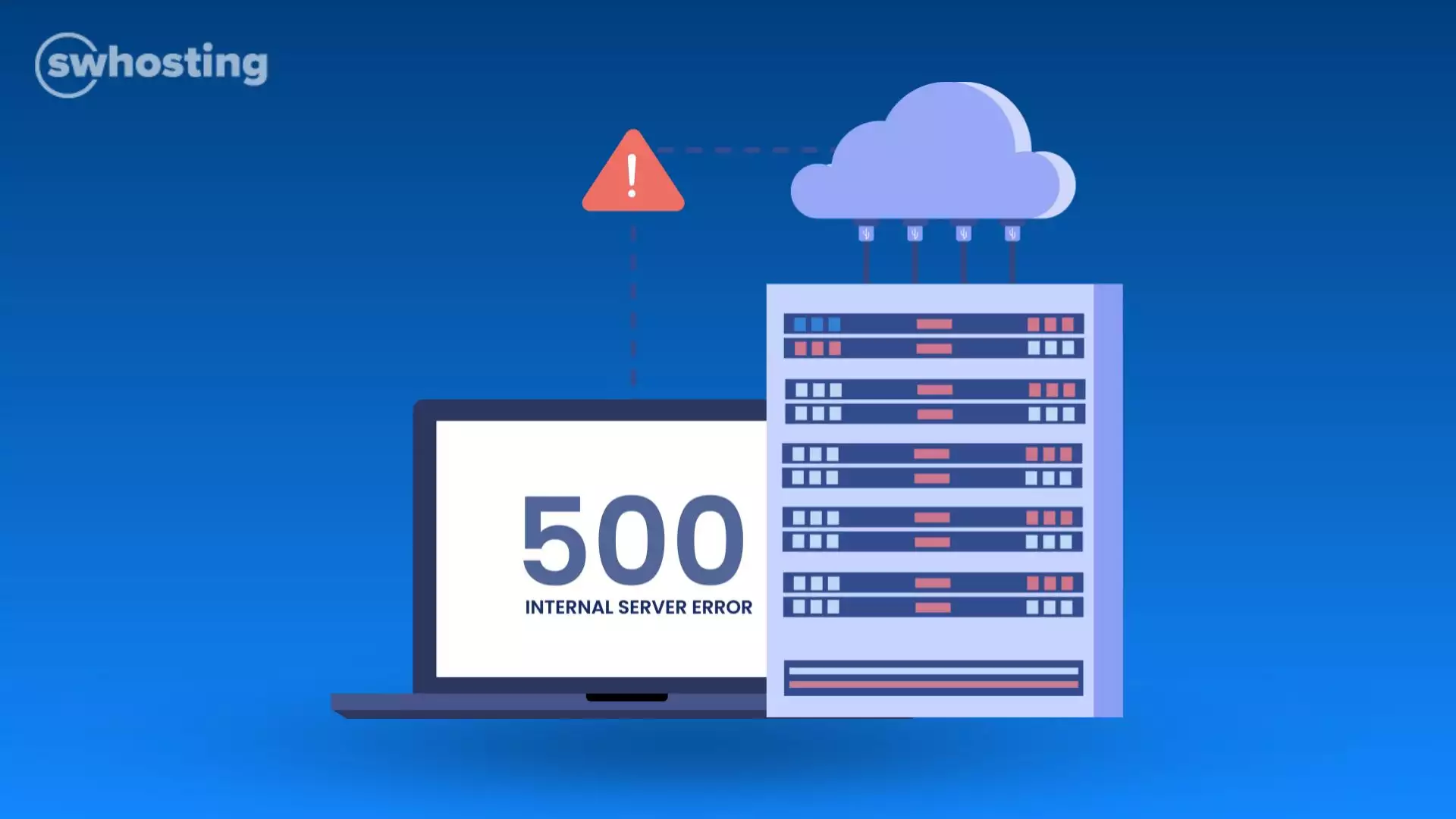
The 500 Internal Server Error is one of the most common HTTP status codes that webmasters and developers encounter. If you’ve come across this message on your website or while browsing, you may be wondering what it means and how to resolve it. In this blog post, we’ll delve into the details of the HTTP Error 500, explore its causes, and discuss ways to troubleshoot and prevent it.
The 500 Internal Server Error is a generic error message that indicates a problem with the server hosting your website. Unlike client-side errors (4xx status codes), which are caused by user actions or requests, a 500 Error signifies an issue on the server that prevents it from fulfilling the request.
When you encounter an HTTP 500 error, the server cannot provide a more specific error message, leaving users confused and frustrated. This status code can be triggered by a variety of factors, which we’ll explore below.
Server Misconfiguration: Often, incorrect configurations in server files (like .htaccess) can lead to an Internal Server Error. Ensure your configuration settings are correct.
Script Errors: If your website is running scripts (like PHP or Python), a coding error can result in a 500 Error. Debugging your scripts can help identify the problem.
Exhausted Server Resources: When a server reaches its resource limits (CPU, memory, etc.), it may respond with a 500 Internal Server Error. This often happens during traffic spikes.
Faulty Plugins or Themes: In content management systems (CMS) like WordPress, incompatible or faulty plugins and themes can trigger this error. Disabling them temporarily can help diagnose the issue.
File Permissions: Incorrect file permissions can prevent the server from accessing files, resulting in a 500 Error. Check that your files have the correct permissions.
If you’re facing an error 500 internal server error, follow these steps to troubleshoot the issue:
Sometimes, a temporary glitch can cause the error. Refreshing the page might resolve the issue.
Access your server logs to get more detailed information about the error. Look for any error messages that can help pinpoint the issue.
If you recently made changes to your website (such as updating code or installing new plugins), revert those changes to see if the HTTP Error 500 resolves.
In a CMS environment, disable all plugins and switch to a default theme. Reactivate them one by one to identify the source of the error.
Make sure your file permissions are set correctly. Typically, directories should have permissions of 755 and files should be set to 644.
To avoid encountering a 500 Internal Server Error in the future, consider the following best practices:
Regularly Update Your Software: Keep your server, CMS, and any plugins up to date to ensure compatibility and security.
Monitor Server Resources: Use monitoring tools to track server performance and resource usage, allowing you to identify potential issues before they escalate.
Implement Proper Error Handling: Configure error handling in your scripts to provide more informative error messages that can assist in troubleshooting.
Backup Your Website: Regularly back up your website so you can quickly restore it in case of errors.
Misconfigured wp-config.php file
Make sure there are no blank spaces or strange characters before or after PHP tags in the wp-config.php file.
Timeout During Update
If WordPress does not update correctly, increase the timeout in the file.php file.
Plugin Incompatibilities
Disable all plugins and reactivate them one by one to find the culprit.
A good hosting can help minimize the occurrence of 500 errors.
In Spain, SW Hosting offers a variety of plans that can fit your needs and budget:
Smart Hosting Startup
Ideal for online stores, starting at 0.85€/month. Offers 3 GB of web space, 1 email account, unlimited traffic, and other features such as free SSL and TLS (SW Hosting) (SW Hosting).
Smart Hosting Growth
From 1.88€/month for the first year (after that 3.75€/month). Includes 30 GB total space, 10 GB web space, 5 email accounts, unlimited traffic, free SSL and TLS, and free CDN from Cloudflare (SW Hosting) (SW Hosting).
Our Hosting gives you the freedom to tailor your website to your brand and goals.
The 500 Internal Server Error can be frustrating, but understanding its causes and knowing how to troubleshoot it can save you time and hassle. By following the tips outlined in this blog, you can mitigate the risk of encountering this error and keep your website running smoothly.


