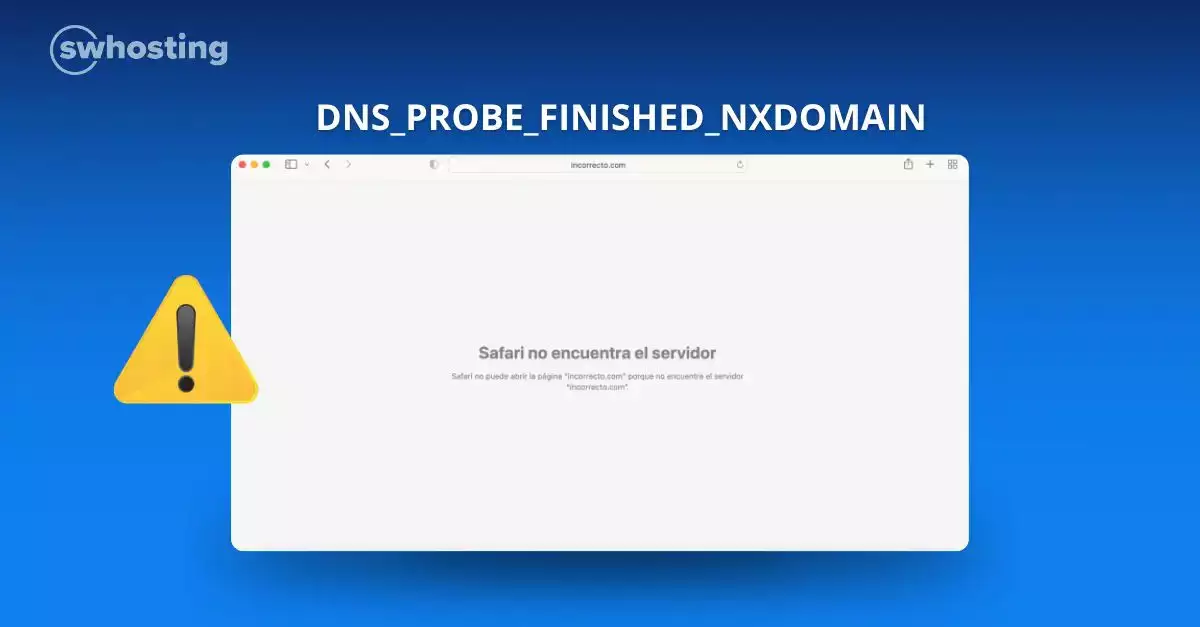
Have you accessed a domain, and you have seen the message in the browser? In this post we will talk about it.
You don't have your own domain yet? In that case we recommend you to take a look at the domain offers we offer at SWHosting.

A domain name is the first step to make your project a reality. Enjoy the best domain rates.
Any user may encounter this error message, followed by “Cannot access this site”. It is strictly related to the DNS servers; the website cannot be found.
When you enter, for example, swhosting.es in your browser, it translates to an IP address, 81.25.112.102. In order to find the exact IP address to be resolved, a series of queries are first made to several name servers, in order to serve the content. If for some reason there are conflicts in the DNS servers, the message "DNS_PROBE_FINISHED_NXDOMAIN" will be displayed.
Each browser has its own way of displaying the DNS_PROBE_FINISHED_NXDOMAIN error. Here is a list of the messages of the most used browsers:
Google Chrome is the browser that most clearly indicates the error message, displaying DNS_PROBE_FINISHED_NXDOMAIN, along with "Cannot access this website, check for a script error at www.midominio.com".
Safari, Apple's browser, shows us the error stating "cannot find the server. Safari cannot open the page www.midominio.com because it cannot find the server 'www.midominio.com".
Mozilla Firefox returns the message "Ugh. We're having trouble finding that site. We can't connect to the server at www.midominio.com".
Microsoft Edge warns of connection failure with "Wow... unable to access this page. Check if there is a typo".
This error can be for several reasons, and it's always the same: For some reason, your web browser can't get the IP address of the server that contains that web page. Why can't they get the IP address? Here is a list of the.
The domain has been typed incorrectly in the browser.
The domain is not registered or has expired.
Use of VPN or Antivirus that cause interference.
Due to an outage in the Internet provider's service.
Error in the DNS settings of the user's computer, such as cache.
Suspended for not validating the domain registrant contact.
One solution may be to clear the cache and cookies (these are small data files), as they can become obsolete or corrupt. Here is how to do it in the most common browsers.
Google Chrome:
Safari:
Mozilla Firefox:
Try a different website. Can you access other sites, such as https://www.swhosting.com or https://www.google.com ? If not, the reason is probably your Internet connection, not the website you are trying to access.
Try accessing from another device, or from another network. It could be your Smartphone's mobile data, or the wifi network you are using.
Contact your Internet Service Provider (ISP) if all else fails to get help to fix it.
Reset Google Chrome flags
Just like browsers, operating systems also store cache. In clearing DNS cache, you can make your connection go faster, and connectivity issues. This can be done on different operating systems.
Windows:
cmd to open the Windows console.ipconfig /flushdns to clear your computer's DNS cache, and press the Enter key.Linux:
sudo /etc/init.d/nscd restart and press the Enter key to clear the DNS cache. This process will prompt you for your user password.Your Linux distribution may have another service for DNS resolution. In case you don't have it, we recommend to check which is your service in charge of DNS resolution.
Mac:
sudo dscacheutil -flushcache; sudo killall -HUP mDNSResponder and press the Enter key to clear the cache. This process will prompt you for your user's password.In case you experience the DNS_PROBE_FINISHED_NXDOMAIN message on your domain, feel free to contact us.
We are expanding our domain portfolio. Check out all SW Hosting domain promotion.
A domain name is the first step to make your project a reality. Enjoy the best domain rates.


