Steps to follow to change the template of a Hosting service
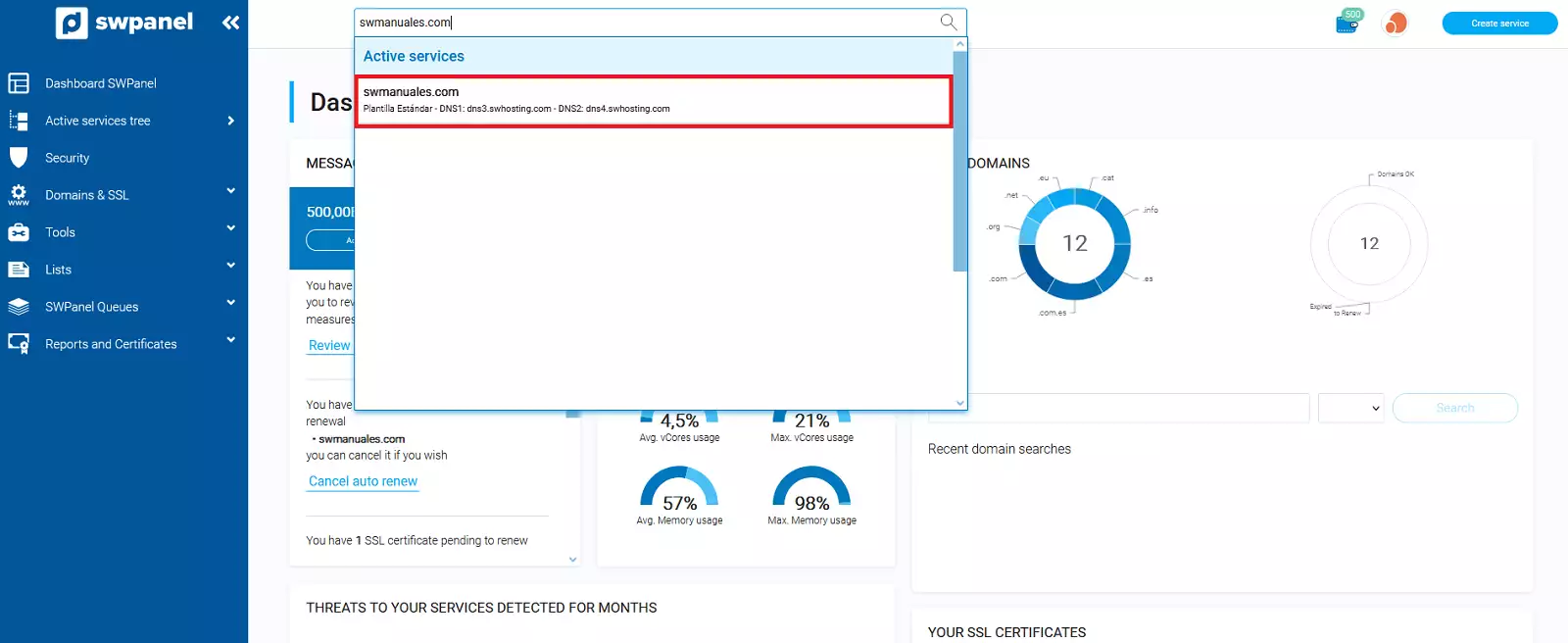
Log in to SWPanel and go to the Hosting service Dashboard, using the search engine located at the top.
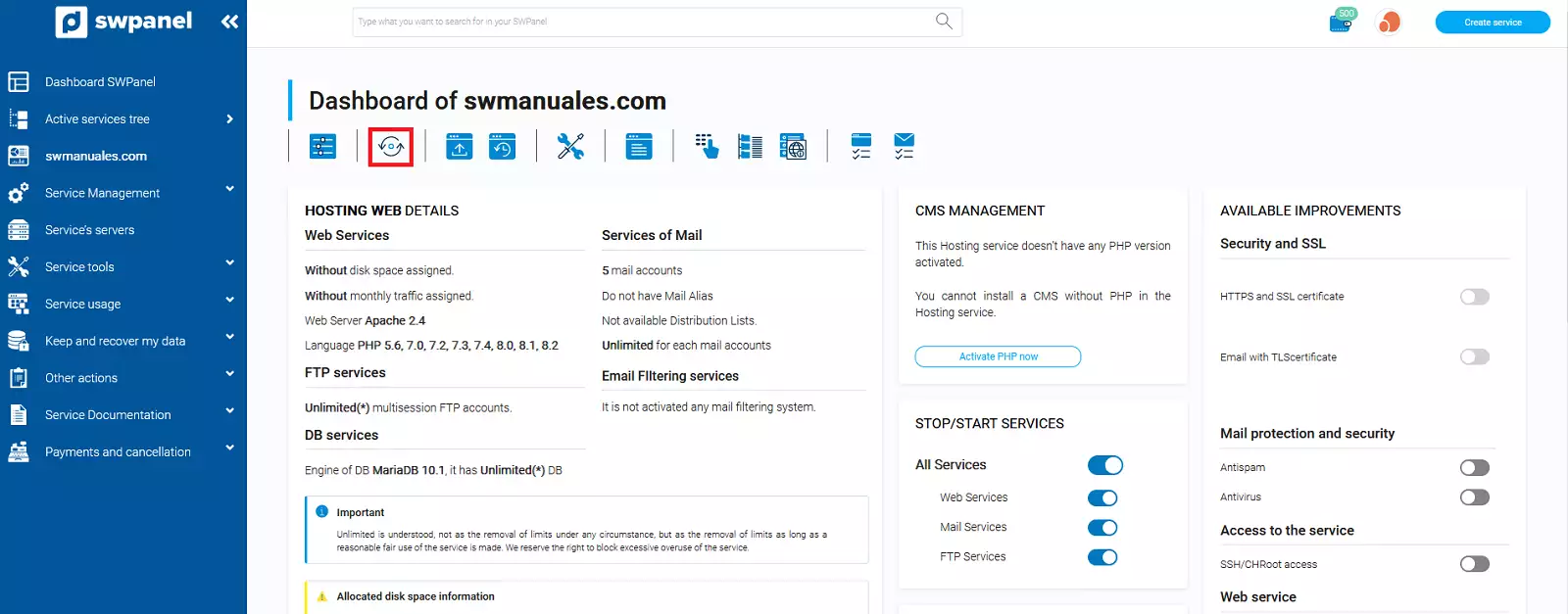
Once inside the Dashboard of the service, you must go to the second menu icon at the top of the Dashboard. If you hover over it, you will see the following text: Click to change the Cloud servers assigned to this service or the Hosting plan type.
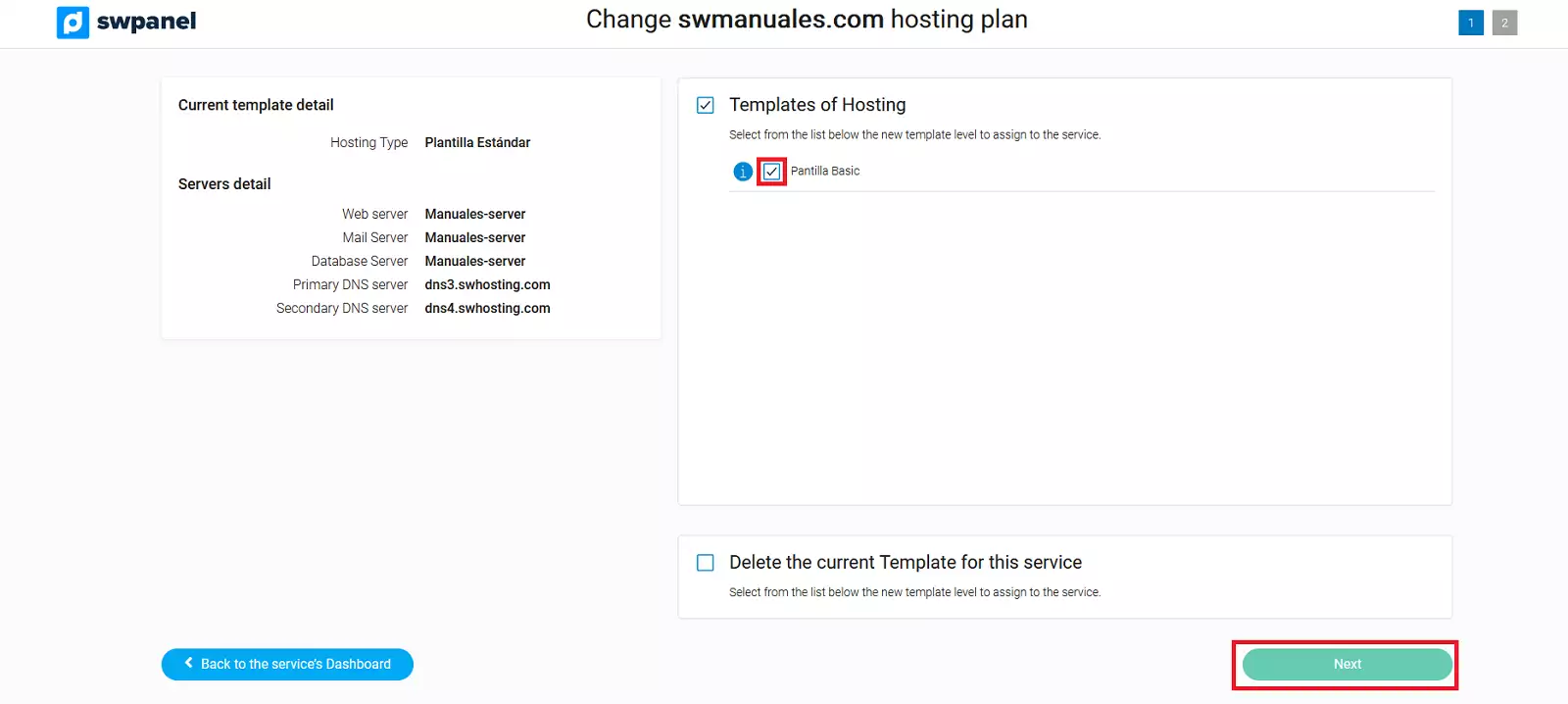
In case you want to Modify the template of the Hosting service, you will have to select the new template in the Hosting Templates section and click on Next.
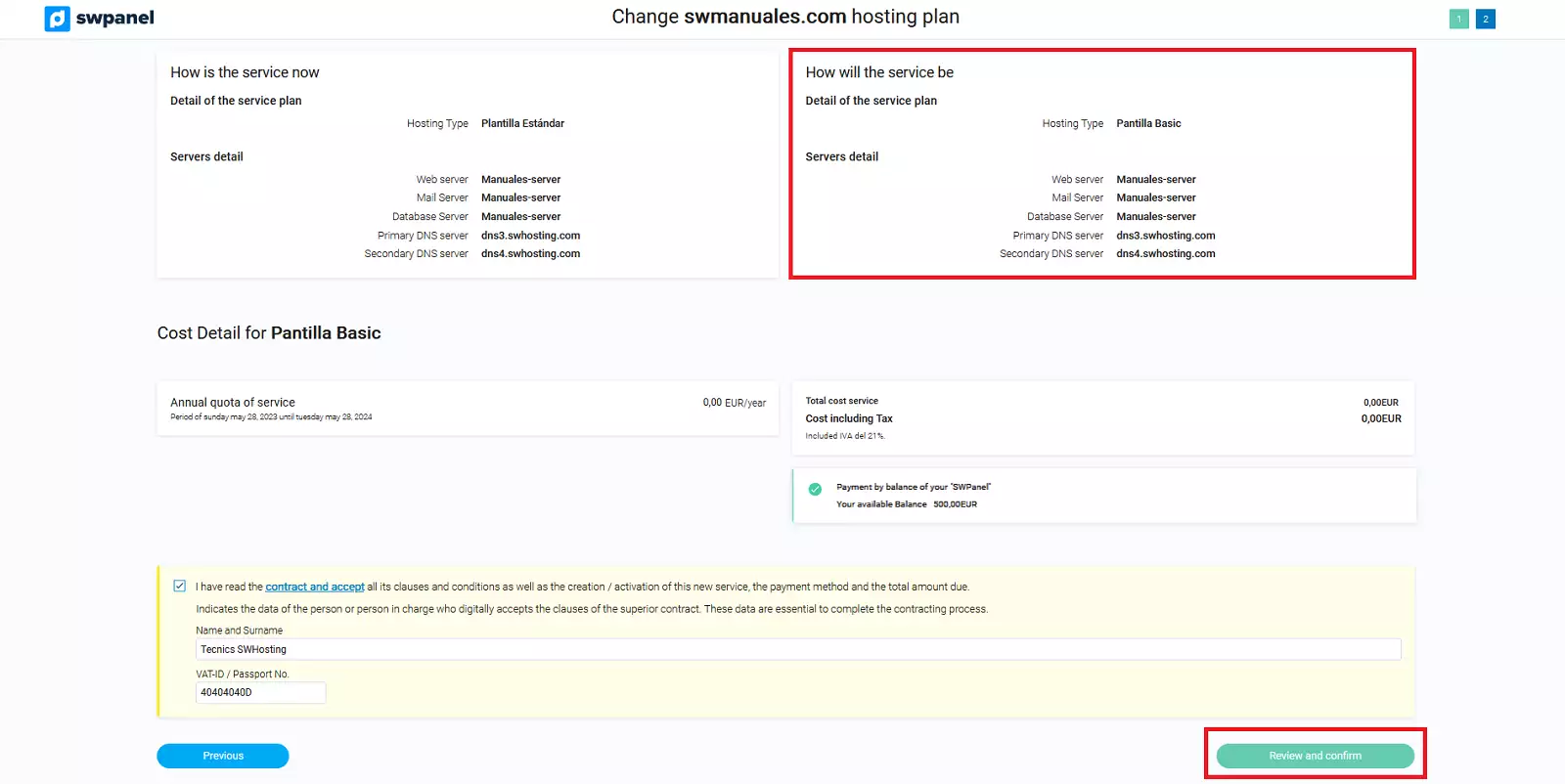
Make sure that the template and the servers in the How the service will look like are the ones you had planned and click Accept and formalize.
Delete Template
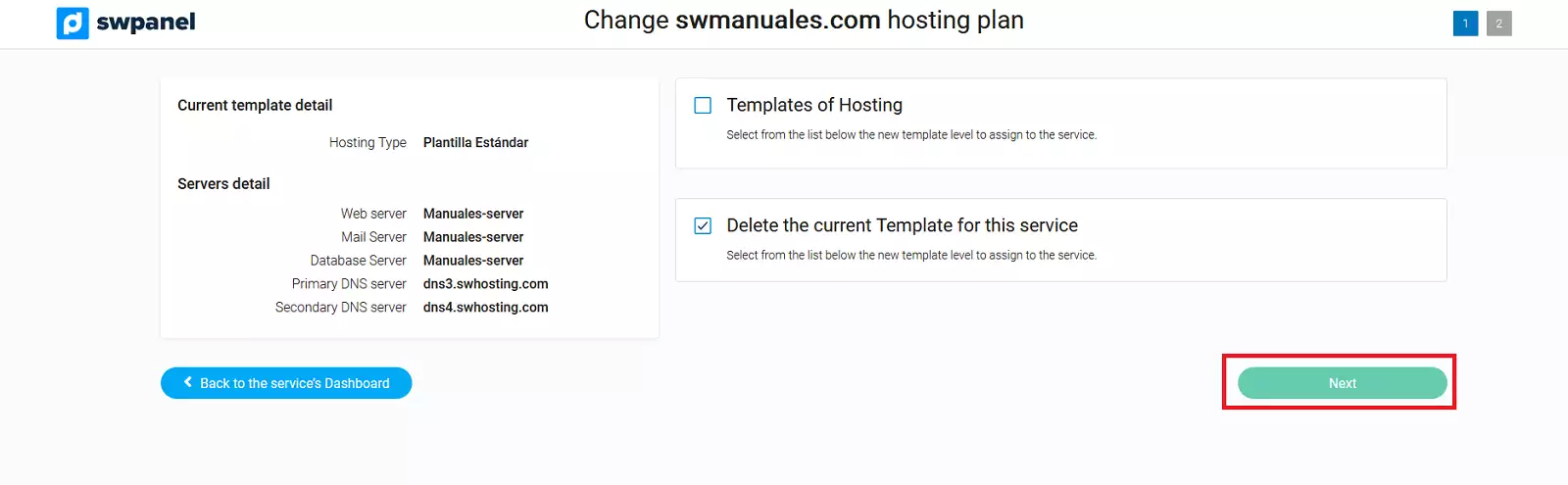
In case you want to Delete the template of the Hosting service, you must select Delete the current Template for this service and click on Next.
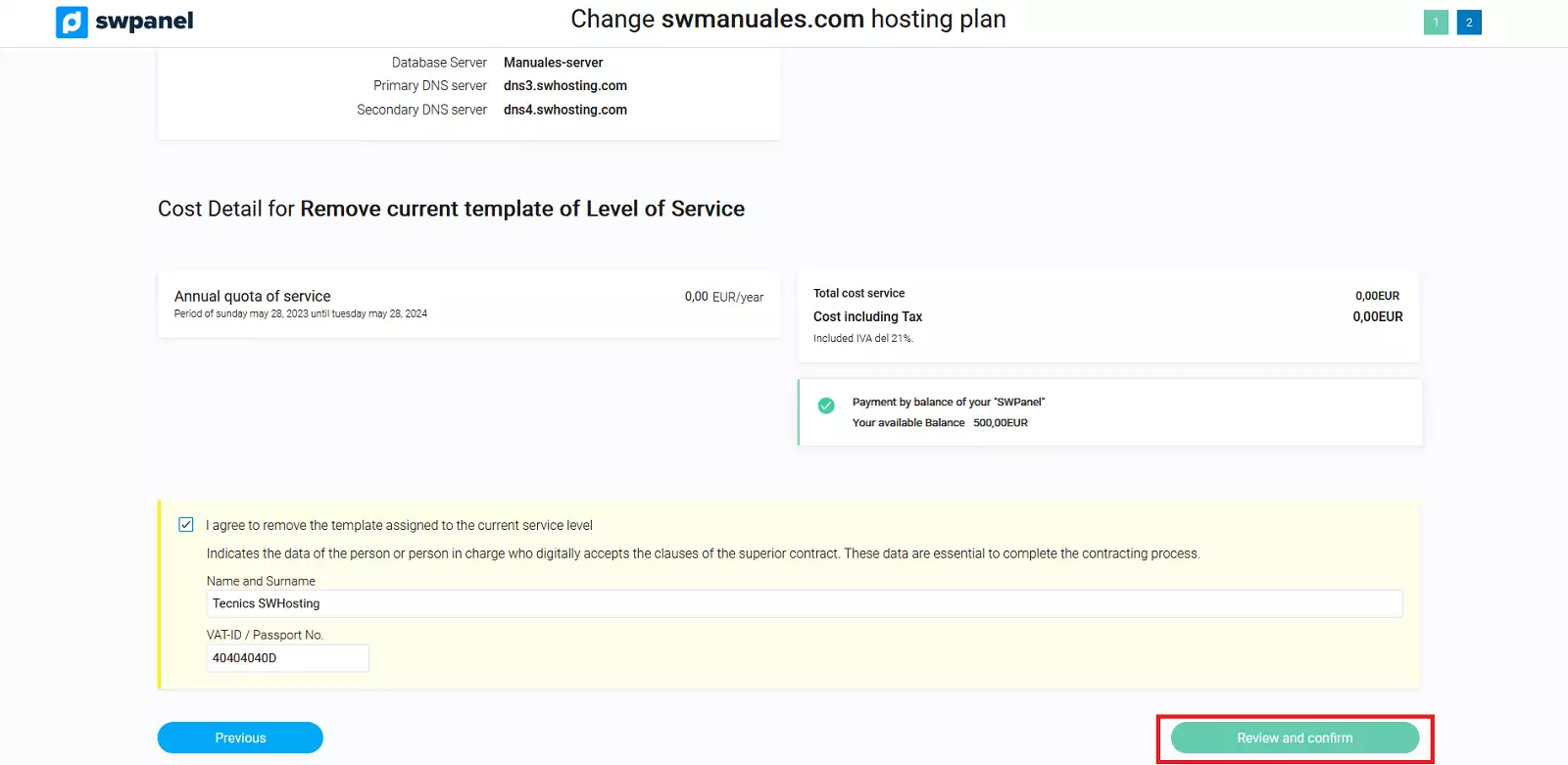
Finally, click on Accept and formalize.
Debian 13!
Now available in all our Cloud Servers!
Find out about new features in Debian 13 in our blog.